
WordPress.com Editor Review 2026: What It’s Actually Like to Use
Updated September 2026: Verify current plans, pricing, features, and recommendations against official sources before acting.
Intro
A lot of WordPress.com reviews spend most of their time on plans, pricing, and feature lists. That’s helpful, but it still skips the question many people actually care about before signing up: what is the editor like when you sit down and try to use it?
That was the part I cared about most, so that’s what I tested first.
In this WordPress.com editor review, I’m focusing on the real writing and publishing experience rather than just feature lists.
So instead of reviewing WordPress.com as an abstract platform, I focused specifically on the editing experience inside the managed WordPress.com environment. I went through the normal onboarding flow, worked inside the block editor, edited the default site setup, and watched for the moments where the platform felt impressively smooth versus the moments where it started to show its limits.
This is not a broad review of WordPress as a whole, and it’s not a review of a self-hosted WordPress.org setup. It’s a hands-on review of the WordPress.com editor itself. If you’re specifically looking for a WordPress.com editor review based on real usage, that’s the lens for everything below.
WordPress.com editor review: quick take
If your main goal is to write and publish inside a cleaner, lower-maintenance environment, the WordPress.com editor is better than many people expect.
If your goal is deep layout control, plugin freedom, or developer-level flexibility, the editor starts to feel more limiting much faster.
My setup context
The environment I’m describing here is the managed WordPress.com version: controlled, sandboxed, and intentionally simpler than a self-hosted WordPress.org install.
The first things I worked through were:
- the onboarding flow
- editing the default homepage
- creating a simple test blog post
- using the normal publish flow
- checking where styling and layout controls actually lived
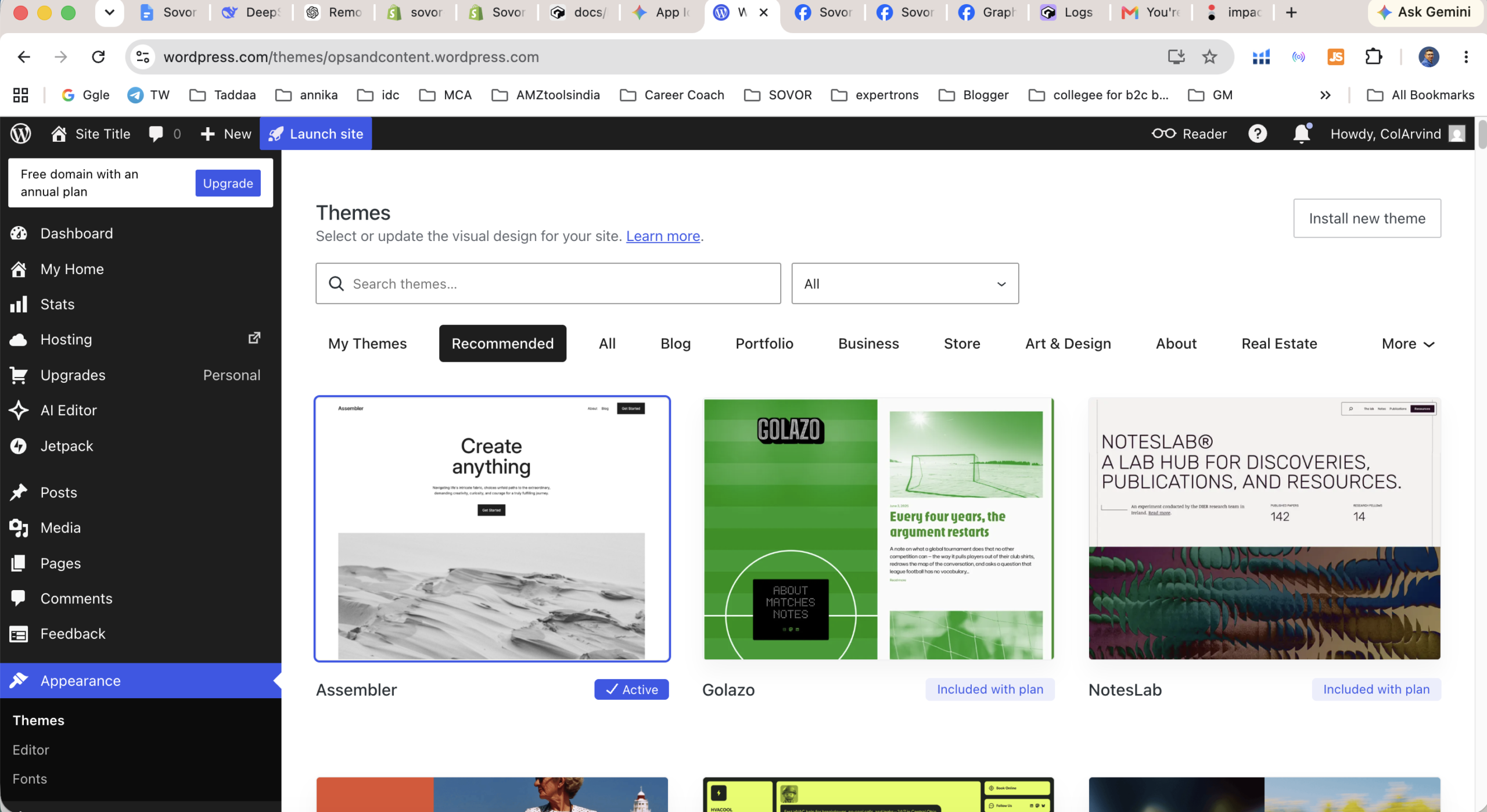
First impression: cleaner and more minimal than I expected
My first reaction was that the editor felt almost unusually bare.
If you’re used to traditional word processors with visible ribbons, dropdowns, and menus everywhere, WordPress.com can initially feel almost too stripped down. There’s a lot of empty space, and at first that can read as “maybe this doesn’t do much.”
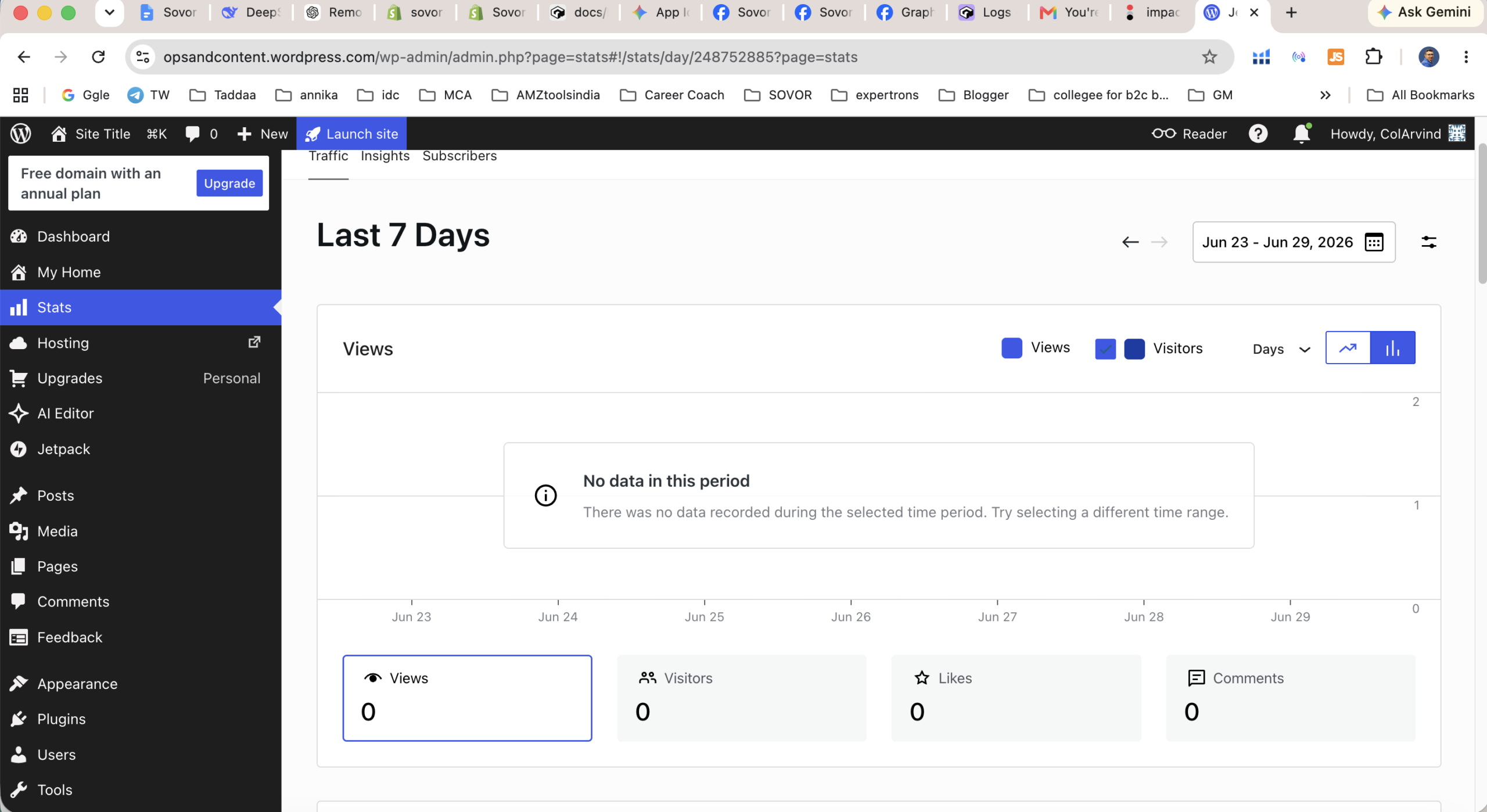
But after a few minutes, I stopped reading that minimalism as missing functionality and started reading it as intentional restraint. The editor removes a lot of visual clutter, and the writing surface feels focused. For someone who mainly wants to write and publish, that’s a real strength. It feels calmer than many website builders that try to surface every possible control at once.
What felt easy immediately
The easiest part of WordPress.com was getting into the actual writing flow.
The onboarding wizard is streamlined, so the platform doesn’t turn setup into a technical project. Once inside the editor, basic actions are intuitive. Adding paragraphs, inserting images, and using the slash command all felt natural quickly.
The single easiest action in the whole workflow was dragging an image from the desktop directly into the browser window. WordPress.com handled that cleanly by creating the image block and uploading it to the media library with almost no friction.
Publishing was straightforward too. Clicking the blue Publish button opens a pre-publish panel where you confirm visibility, timing, and related settings before clicking Publish a second time to finalize.
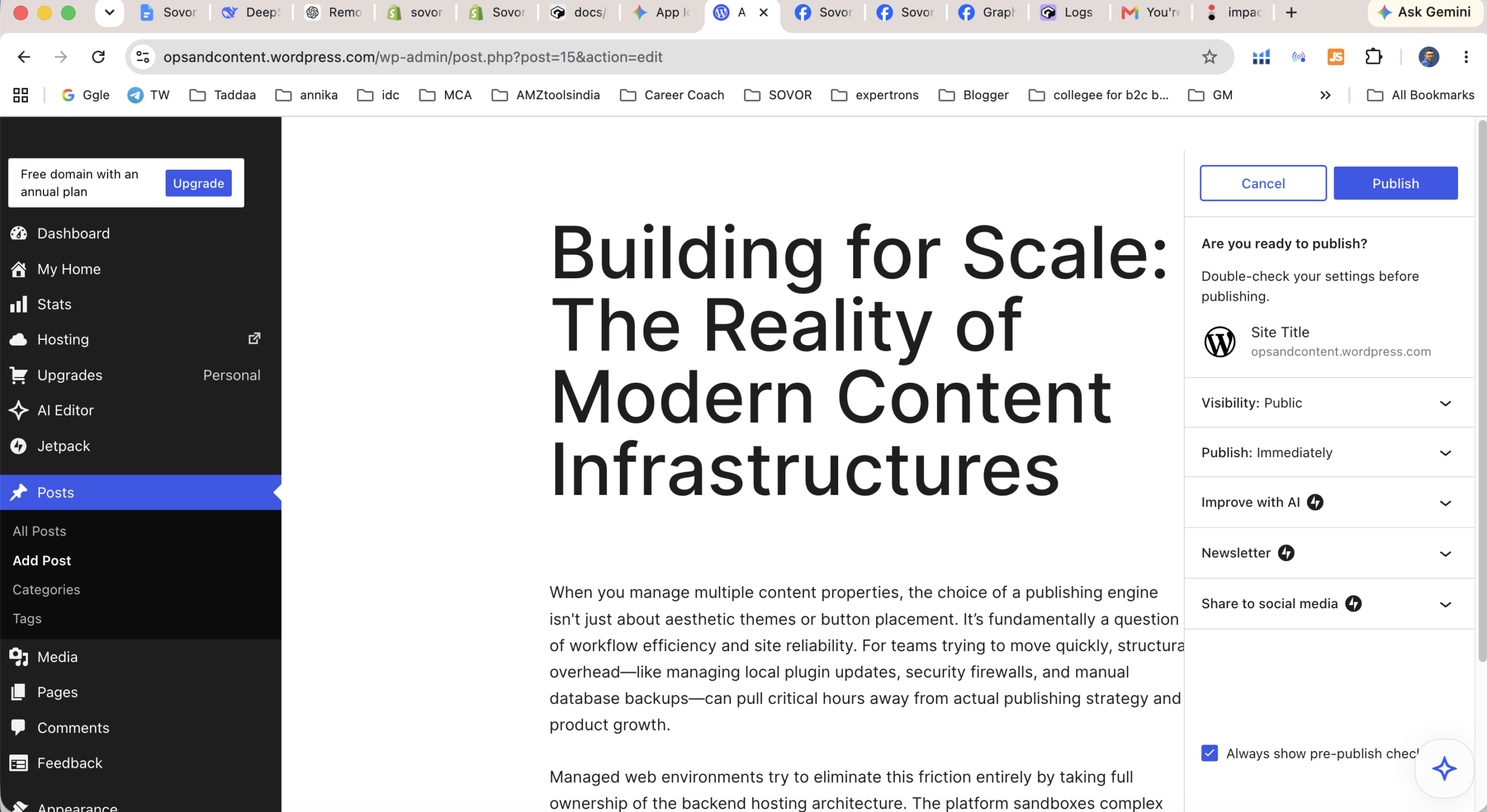
That two-step confirmation is simple, but it reflects what WordPress.com does well: it reduces the chance of user error without making the workflow feel heavy.
What was better than expected
The feature I ended up liking more than I expected was distraction-free mode.
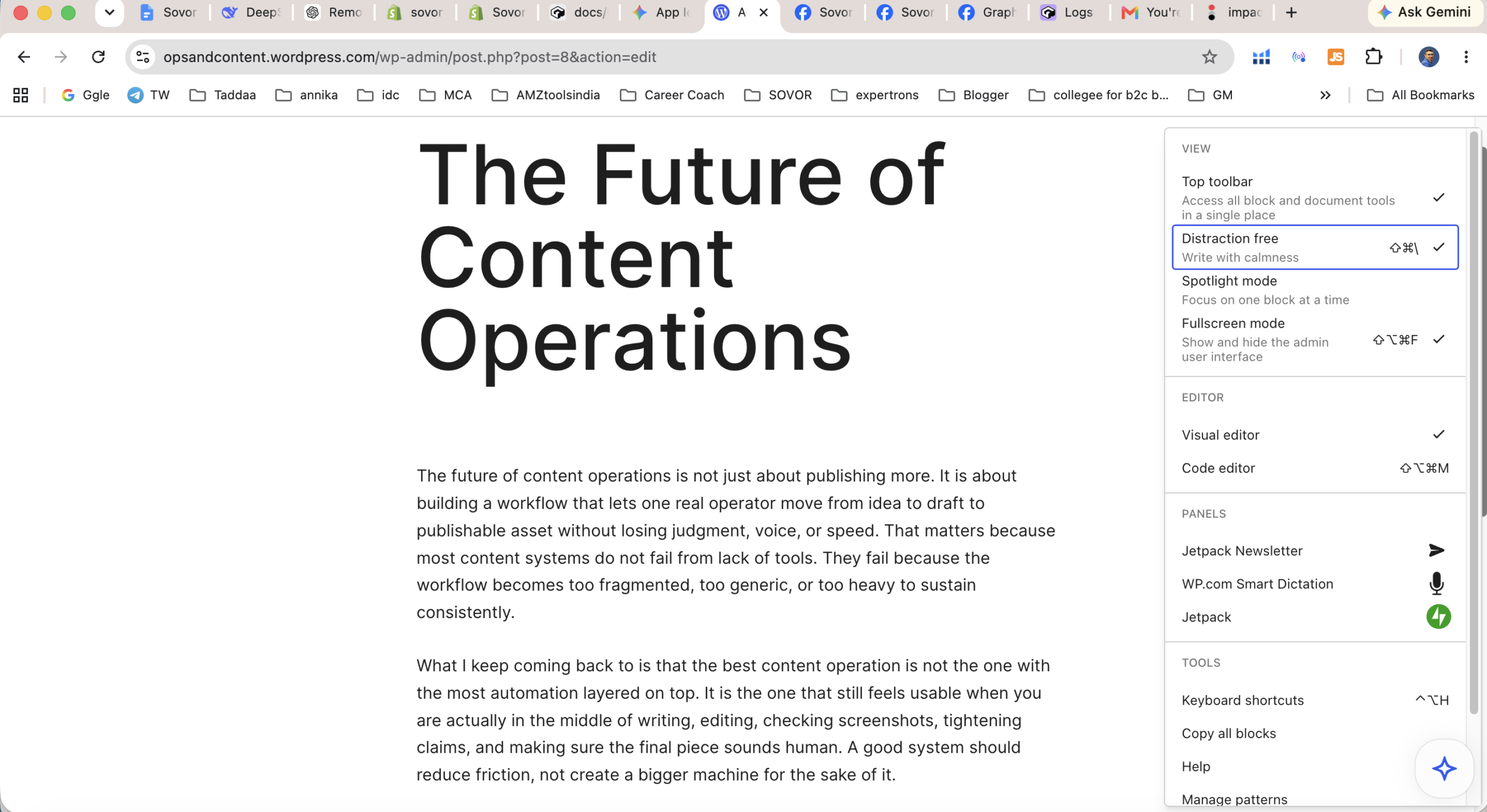
Once the sidebars and interface chrome disappear, the editor becomes a genuinely pleasant place to draft long-form content. If your main job is writing, that matters more than flashy visual controls.
I was also reassured by the revision history and auto-save behavior. These aren’t glamorous features, but they make the editor feel dependable. It’s difficult to lose work accidentally, which lowers the stress of testing a new platform or drafting something longer.
That overall polish matters. WordPress.com feels strongest in the parts of the workflow that matter most to writers, bloggers, and small teams: drafting, saving, previewing, and publishing.
My WordPress.com editor review takeaway at this stage was that the platform is calmer than expected for pure writing work.
What got confusing
The first moment I genuinely hesitated was when I had to think about the difference between the regular post editor and the broader Site Editor.
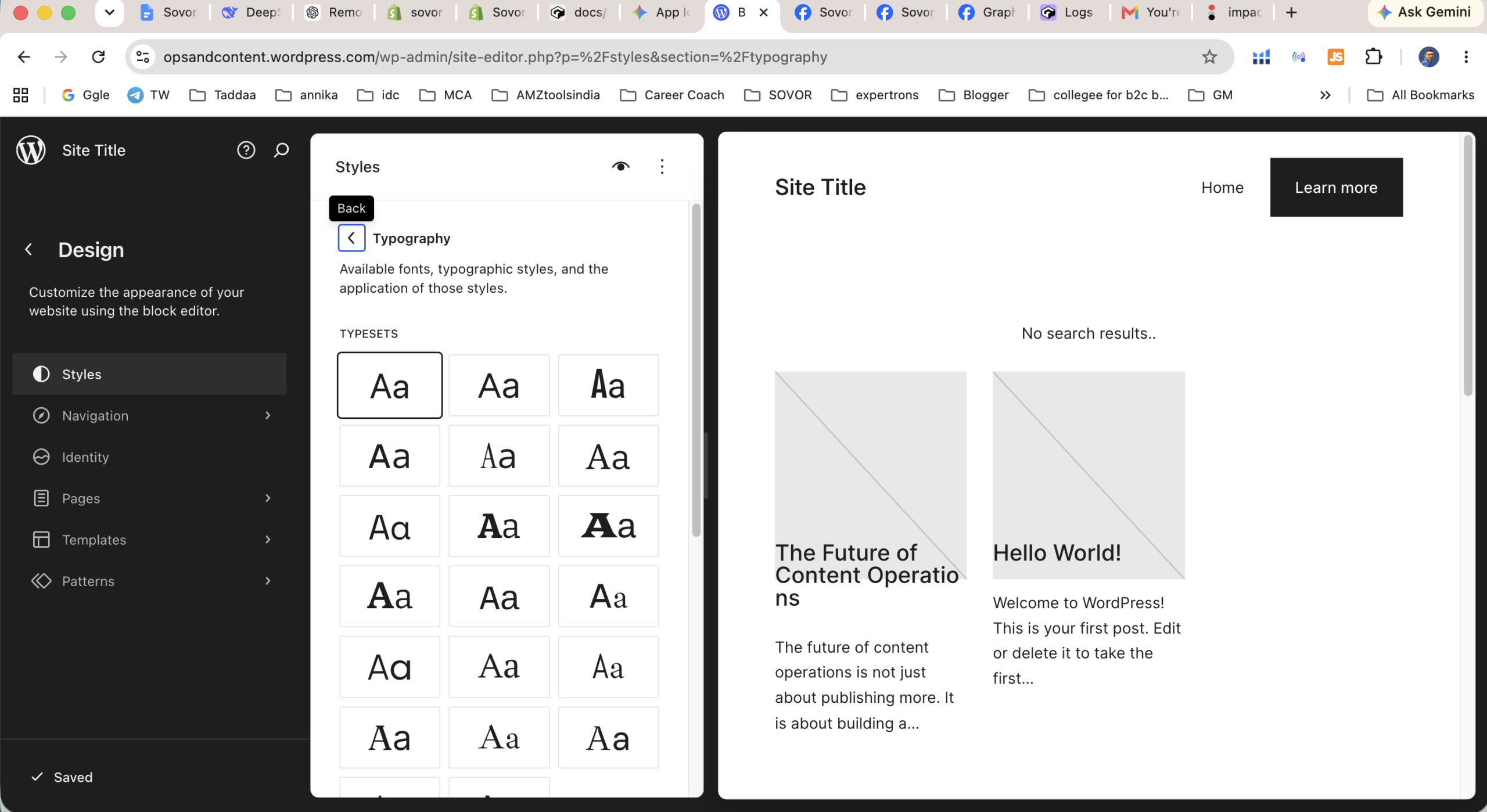
In theory, that distinction is logical. In practice, it was one of the first places where I had to stop and think instead of just continuing naturally.
A beginner can easily end up asking: am I editing this one piece of content, or am I changing something across the whole site?
That confusion becomes more noticeable when typography or design settings enter the picture. It isn’t always obvious where to change a font globally for the whole site versus where to change the styling of one block on one page.
The minimalist design helps the interface feel calm, but it also hides complexity well enough that some users may take longer to understand where important controls live.
The first real friction point
The first point where the experience stopped feeling intuitive was layout control.
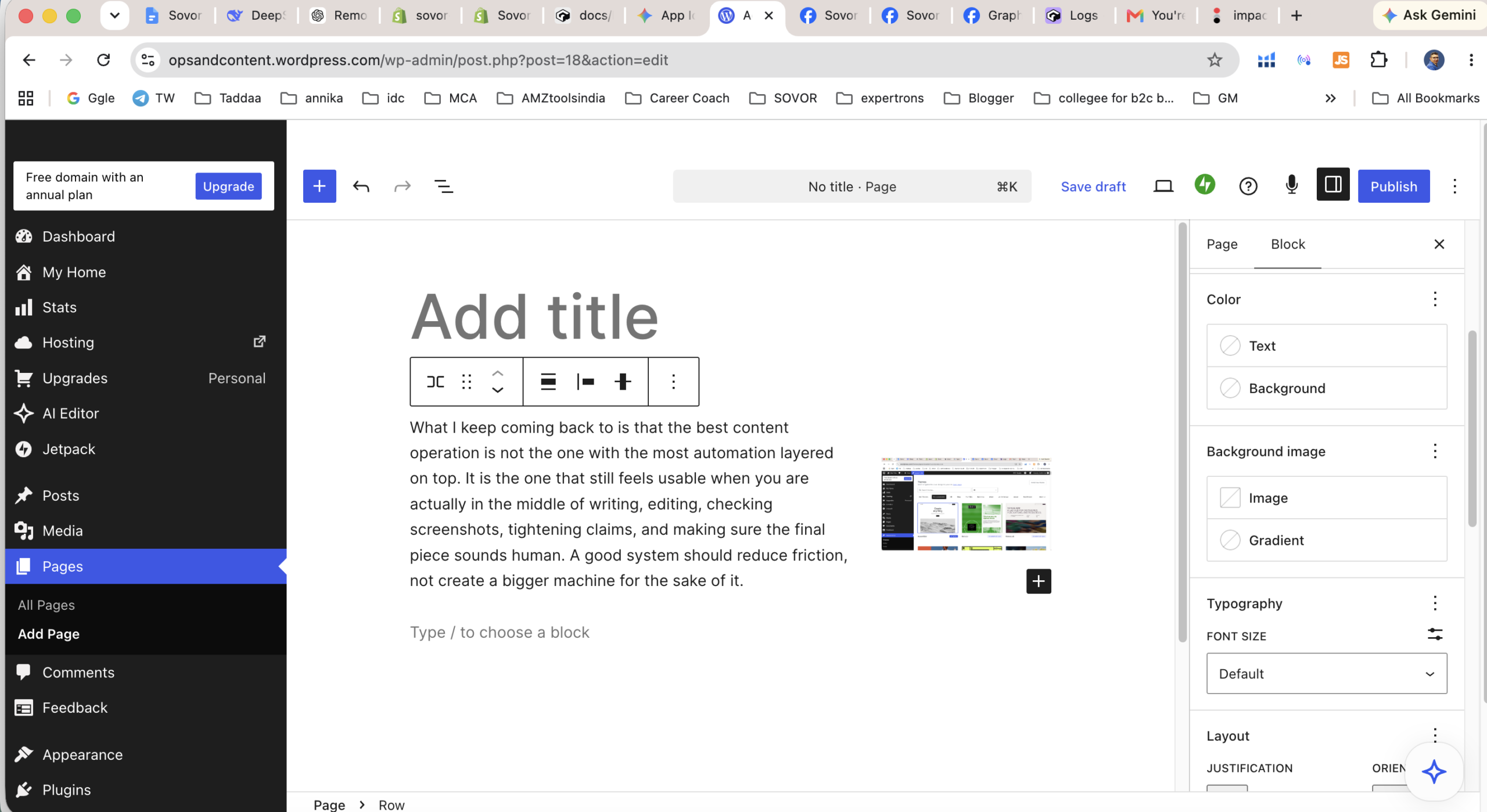
If all you want to do is write a clean post with text and images, WordPress.com stays approachable. But the moment you try to create a more deliberate layout — for example, putting text beside an image and making sure it behaves properly across desktop and mobile — the editor becomes less intuitive.
That’s where blocks like Row, Stack, and Group start to matter.
They are useful, and they make sense once you understand them. But they are not instantly self-explanatory for a beginner. This is the moment where WordPress.com starts feeling less like a pure writing tool and more like a visual system you need to learn.
Where WordPress.com feels limiting
This is also where the platform’s core trade-off becomes obvious.
WordPress.com is easiest when you stay inside its intended workflow. The friction shows up when you try to make the platform behave more like a deeply customized self-hosted install.
On lower-tier plans especially, there are clear walls:
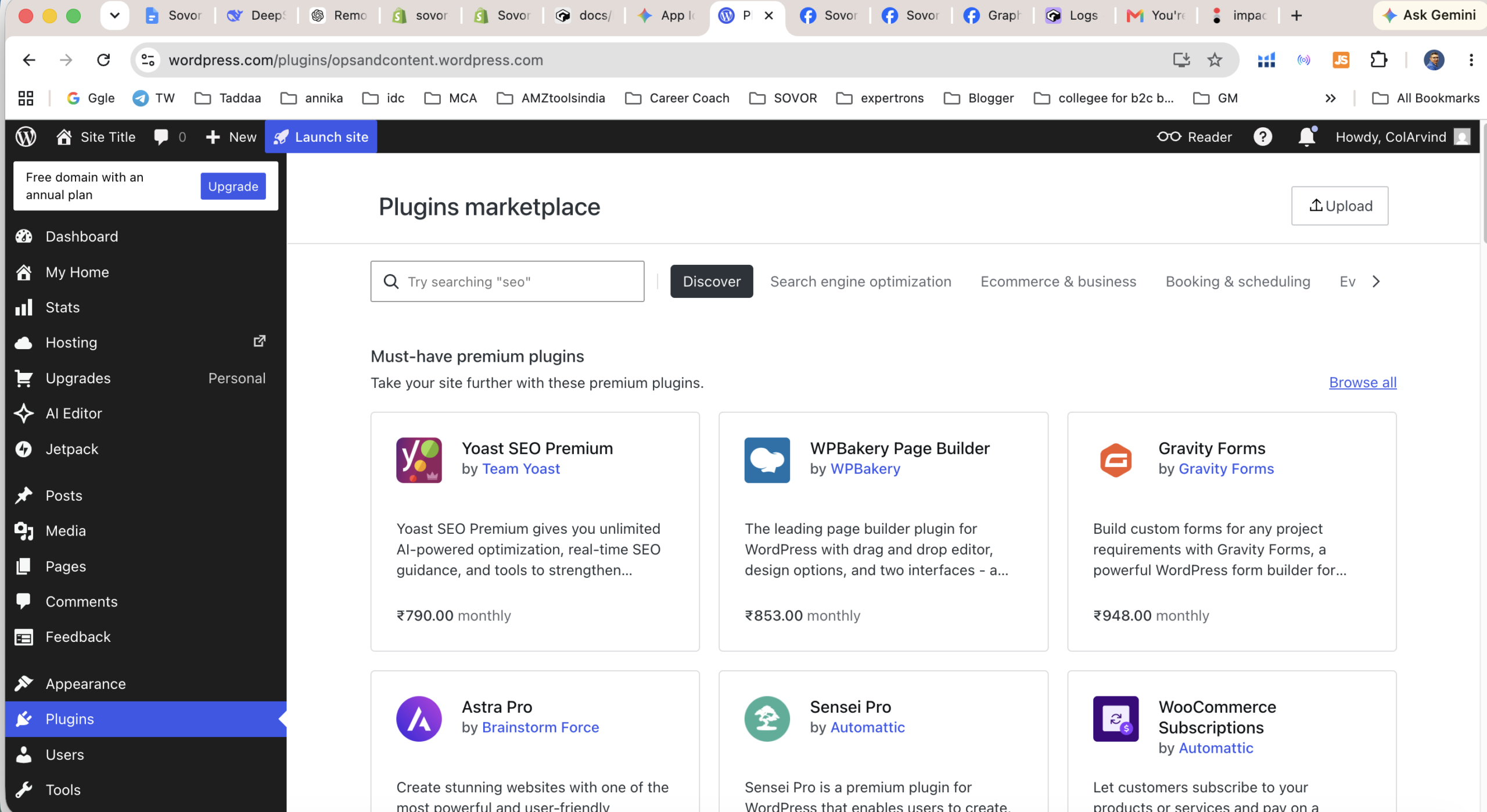
- limited plugin freedom compared with self-hosted WordPress.org
- restrictions around custom themes
- roadblocks around custom CSS, script insertion, or other advanced customization depending on plan level
- no normal expectation of FTP, database access, or PHP-level control
In other words, some of the limitations are not just about learning the interface — they are tied directly to what your plan allows you to do.
For some users, that’s completely fine. In fact, it’s part of the appeal. They don’t want to think about hosting, updates, server maintenance, or security patching.
But for advanced users, those same guardrails will feel like hard limits rather than helpful simplifications.
Is it beginner-friendly?
For basic publishing, yes.
If your goal is to create straightforward text-and-image posts, publish consistently, and avoid the technical overhead that comes with self-hosting, WordPress.com is beginner-friendly.
Where the slope gets steeper is customization. The moment a beginner starts trying to heavily adapt a theme, control layout more precisely, or make site-wide visual changes with confidence, the platform becomes less immediately friendly.
So the honest answer, at least from my hands-on use, is this: WordPress.com is beginner-friendly for publishing, but not nearly as beginner-friendly once customization enters the picture.
Who it’s best for
WordPress.com makes the most sense for:
- writers
- bloggers
- solo creators
- small businesses that want a site that just works
- operators who would rather focus on publishing than maintenance
If your goal is to write, publish, and maintain a professional-looking site without worrying about hosting, updates, or security, WordPress.com is a very comfortable place to work.
If your top priority is convenience and peace of mind rather than technical flexibility, you’re probably the kind of user WordPress.com is built for.
Who will outgrow it faster
Developers, agencies, larger ecommerce teams, and highly technical operators will outgrow it much faster.
If you already know you’ll want plugin freedom, server-level access, custom database work, or full developer control, you may outgrow WordPress.com faster than you expect.
That doesn’t make WordPress.com weak. It just means its strengths and its limits are tightly connected. The same structure that makes it calmer and safer for beginners also makes it less flexible for power users.
Honest limitation section
If you want a totally frictionless editor, this probably isn’t that. Some parts of the workflow are smooth, but others can still feel layered, slightly clunky, or less intuitive than you expect.
That doesn’t make it a bad editor. It just means the experience is better described as solid and usable than effortlessly smooth.
Final verdict
WordPress.com is a polished, secure, and highly managed ecosystem that trades ultimate technical freedom for convenience and peace of mind.
Its editing experience is one of the strongest parts of the platform. If your main priority is writing and publishing inside a controlled, low-maintenance environment, there is a lot to like here. The editor is cleaner than many people will expect, and the core publishing flow is smoother than it first appears.
But if your long-term roadmap includes deep customization, developer-level access, or a highly tailored site architecture, the simplicity of the editor will eventually start to feel like a ceiling rather than a benefit.
If you want to explore WordPress.com for yourself, you can check it out here: WordPress.com
Where I land after using it
After spending real time inside it, I don’t think the WordPress.com editor is best judged with a lazy label like “powerful” or “limited.” What matters more is whether you want the kind of controlled, opinionated workflow it is clearly designed to provide.
What stayed with me most after using it was that the core act of writing, inserting media, saving progress, and publishing felt smoother than I expected. The friction didn’t come from basic publishing. It showed up when I pushed beyond that and expected the platform to behave like a more customizable self-hosted setup.
That’s really the decision point. If you want a calmer, lower-maintenance publishing experience, WordPress.com is better than many critics give it credit for. If you already know you want full technical freedom, the same simplicity will probably start feeling restrictive fairly quickly.
If you want the broader platform comparison first, start with WordPress.com vs WordPress.org 2026.
If budget and plan fit are your main concern, read Best WordPress.com Plan for Beginners.
If you want the ecommerce angle, read WordPress.com for D2C Stores.
Author bio: Arvind Jadli is a content operator and digital strategist who spends a lot of time testing publishing systems, editorial workflows, and CMS tools in real working conditions. He writes hands-on breakdowns to help teams choose platforms more clearly and avoid expensive setup mistakes.
Frequently Asked Questions
Recommended Reading
Handpicked by Arvind – books that actually changed how I think about this topic.
SEO 2026: Learn Search Engine Optimization with Smart Internet Marketing Strategies
Best Hosting to Start an Online Business 2026
Tested by GSA. Best price-performance for Indian D2C stores. (Affiliate links – we earn a small commission at no extra cost to you.)
Sources & further reading: Search Engine Land
Further reading: Statista · Search Engine Land
Affiliate disclosure: This article may contain sponsored affiliate links. If you purchase through one, GSA may earn a commission at no additional cost to you. Recommendations are based on fit, operational trade-offs, and publicly available evidence, not commission rates.
See which pages lose clicks
Run the free website SEO audit to find the pages Google already shows but that earn almost no clicks, then fix the highest-impact issues first.